
114 lines
4.2 KiB
Markdown
114 lines
4.2 KiB
Markdown
# `three-good-godrays`
|
|
|
|
[](https://github.com/ameobea/three-good-godrays/actions/workflows/ci.yml)
|
|
[](https://www.npmjs.com/package/three-good-godrays)
|
|
|
|
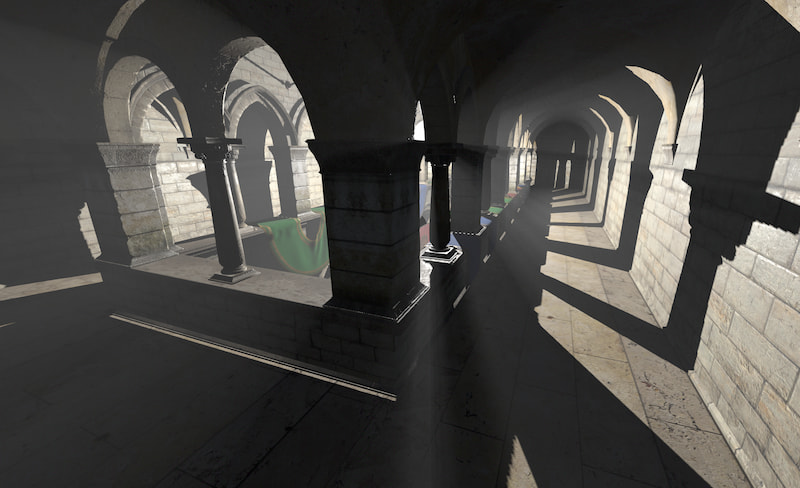
Good godrays effect for three.js using the [pmndrs `postprocessing` library](https://github.com/pmndrs/postprocessing)
|
|
|
|
Adapted from [original implementation](https://github.com/n8python/goodGodRays) by [@n8python](https://github.com/n8python)
|
|
|
|
**Demo**: <https://three-good-godrays.ameo.design>
|
|
|
|
|
|
|
|
## Install
|
|
|
|
`npm install three-good-godrays`
|
|
|
|
Or import from unpkg as a module:
|
|
|
|
```ts
|
|
import { GodraysPass } from 'https://unpkg.com/three-good-godrays@0.7.1/build/three-good-godrays.esm.js';
|
|
```
|
|
|
|
## Supported Three.JS Version
|
|
|
|
This library was tested to work with Three.JS versions `>= 0.125.0 <= 0.167.0`. Although it might work with versions outside that range, support is not guaranteed.
|
|
|
|
## Usage
|
|
|
|
```ts
|
|
import { EffectComposer, RenderPass } from 'postprocessing';
|
|
import * as THREE from 'three';
|
|
import { GodraysPass } from 'three-good-godrays';
|
|
|
|
const { scene, camera, renderer } = initYourScene();
|
|
|
|
// shadowmaps are needed for this effect
|
|
renderer.shadowMap.enabled = true;
|
|
renderer.shadowMap.type = THREE.PCFSoftShadowMap;
|
|
renderer.shadowMap.autoUpdate = true;
|
|
|
|
// Make sure to set applicable objects in your scene to cast + receive shadows
|
|
// so that this effect will work
|
|
scene.traverse(obj => {
|
|
if (obj instanceof THREE.Mesh) {
|
|
obj.castShadow = true;
|
|
obj.receiveShadow = true;
|
|
}
|
|
});
|
|
|
|
// godrays can be cast from either `PointLight`s or `DirectionalLight`s
|
|
const lightPos = new THREE.Vector3(0, 20, 0);
|
|
const pointLight = new THREE.PointLight(0xffffff, 1, 10000);
|
|
pointLight.castShadow = true;
|
|
pointLight.shadow.mapSize.width = 1024;
|
|
pointLight.shadow.mapSize.height = 1024;
|
|
pointLight.shadow.autoUpdate = true;
|
|
pointLight.shadow.camera.near = 0.1;
|
|
pointLight.shadow.camera.far = 1000;
|
|
pointLight.shadow.camera.updateProjectionMatrix();
|
|
pointLight.position.copy(lightPos);
|
|
scene.add(pointLight);
|
|
|
|
// set up rendering pipeline and add godrays pass at the end
|
|
const composer = new EffectComposer(renderer, { frameBufferType: THREE.HalfFloatType });
|
|
|
|
const renderPass = new RenderPass(scene, camera);
|
|
renderPass.renderToScreen = false;
|
|
composer.addPass(renderPass);
|
|
|
|
// Default values are shown. You can supply a sparse object or `undefined`.
|
|
const params = {
|
|
density: 1 / 128,
|
|
maxDensity: 0.5,
|
|
edgeStrength: 2,
|
|
edgeRadius: 2,
|
|
distanceAttenuation: 2,
|
|
color: new THREE.Color(0xffffff),
|
|
raymarchSteps: 60,
|
|
blur: true,
|
|
gammaCorrection: true,
|
|
};
|
|
|
|
const godraysPass = new GodraysPass(pointLight, camera, params);
|
|
// If this is the last pass in your pipeline, set `renderToScreen` to `true`
|
|
godraysPass.renderToScreen = true;
|
|
composer.addPass(godraysPass);
|
|
|
|
function animate() {
|
|
requestAnimationFrame(animate);
|
|
composer.render();
|
|
}
|
|
requestAnimationFrame(animate);
|
|
```
|
|
|
|
### Gamma Correction
|
|
|
|
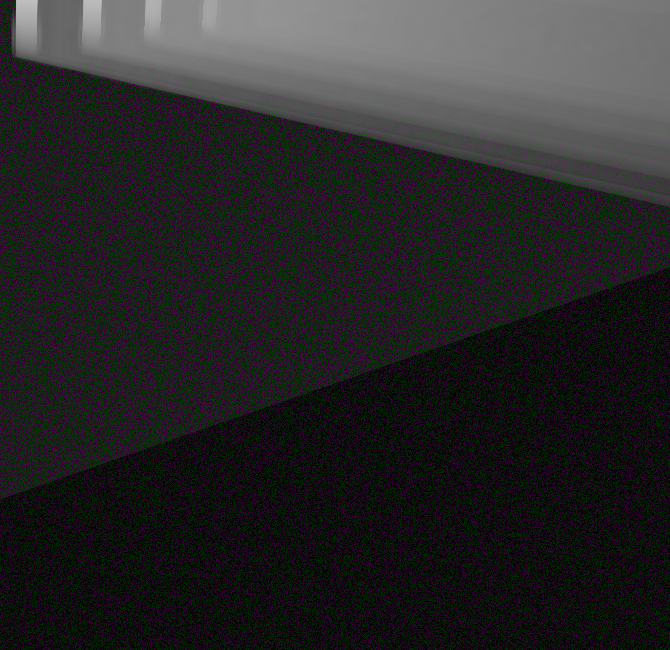
Gamma correction is enabled by this effect by default, matching expectations of sRGB buffers from `postprocessing`. However, you can disable this by setting `gammaCorrection: false` in the configuration object for the pass.
|
|
|
|
This may be necessary if you use other effect passes after `GodraysPass` that perform their own output encoding. If you see artifacts similar to these:
|
|
|
|
|
|
|
|
Try setting `gammaCorrection: false` on the `GodraysPass` or setting `encodeOutput = false` on any `EffectPass` that is added after the `GodraysPass`.
|
|
|
|
## Develop + Run Demos Locally
|
|
|
|
- Clone repo
|
|
- `npm install`
|
|
- `npm run prepublishOnly` to run initial builds
|
|
- `npm install -g serve`
|
|
- Run `node esbuild.mjs` whenever files are chnaged to re-build
|
|
- Run `serve public/demo -p 5001` and visit http://localhost:5001 in your browser
|